
Why group numbers don't live in your address book
Joining a WhatsApp group creates no address book link whatsoever. The app displays members' numbers, but to your phone they remain strangers: they show up unnamed, they never enter your broadcast lists, they don't see your Status — and they vanish if you leave the group.
That matters because groups are where the base lives: your customer community, deal groups, course cohorts, event attendees, your team. It's the biggest concentration of relevant contacts in your WhatsApp — and the least used.
The manual way (and why nobody finishes it)
The native path is opening the group info, tapping each member, choosing "add to contacts", typing a name, saving. Around 30–40 seconds per number when WhatsApp cooperates. In a 180-member group that's almost 2 hours of typing — per group. With three or four groups, it's an entire weekend. That's why everyone starts and nobody finishes.
The fast way: export the whole group in 1 click
With the WAzap extension installed on Chrome, the whole process takes less time than manually saving ten contacts:
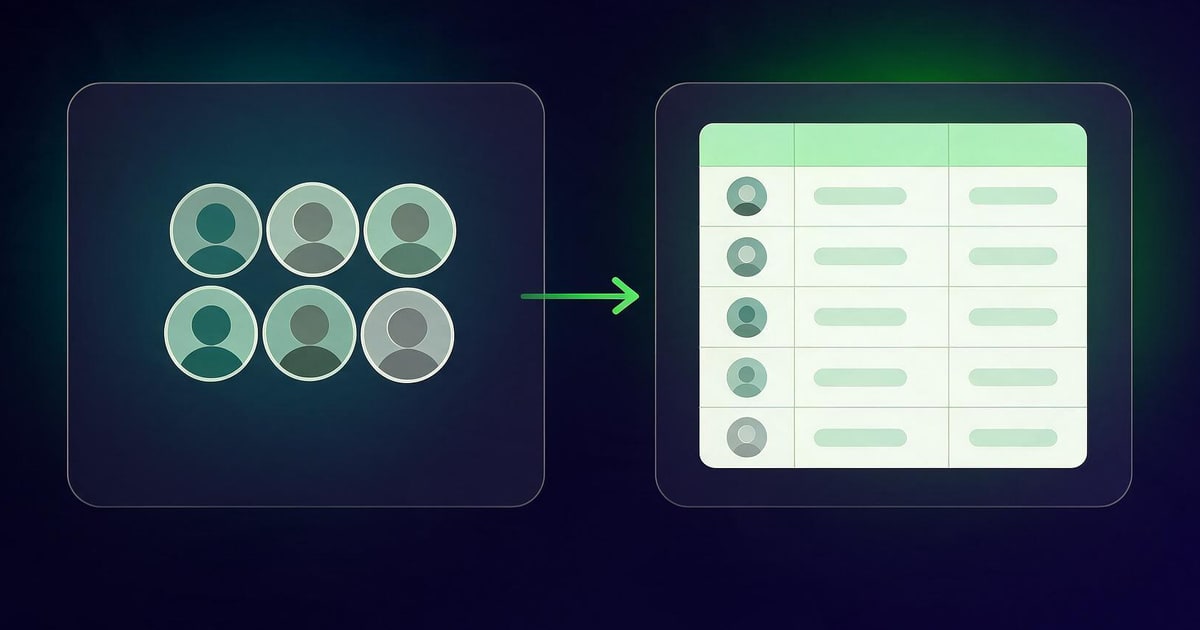
- Open WhatsApp Web (web.whatsapp.com) and log in with the QR code;
- Click the WAzap icon in the browser bar and choose group export;
- Select the group (or several) and click Collect Contacts — the extension reads the name and number of every visible member, locally in your browser;
- Download the CSV, ready in Google Contacts format.
The screen-by-screen walkthrough is in the full export tutorial.
What to do with the CSV
- Google Contacts: import at contacts.google.com with the same account as your phone — the address book syncs by itself, and everyone starts seeing your Status and receiving your broadcasts.
- CRM and spreadsheets: the CSV opens straight in Excel/Sheets and imports into HubSpot, Pipedrive and the like — every member becomes a trackable lead.
- Backup: keep the file. If the group gets deleted or you leave it, the base is still yours. Got an old TXT list? Convert it with our free TXT → CSV converter.
Use cases that move the needle
- Customer communities: turn members into named contacts and build segmented repurchase lists — the exact move that changed the game in this sales story.
- Events and launches: the event group dies in a week; the exported attendee list becomes the audience for the next one.
- Courses and mentorships: saved students get broadcast announcements without depending on everyone opening the group.
- Networking: that niche group full of great people? With contacts saved and named, every conversation starts with context.
Responsible use (read before you blast)
Being able to save every number is not a license to message every number. Three simple rules keep your account healthy and your brand respected:
- Legitimate relationship first. Prioritize your own brand's groups, your customers, your events. Extracting strangers' groups for cold outreach is the shortest path to being reported.
- Privacy laws apply. A phone number is personal data (GDPR/LGPD). Message with context and offer an easy way out ("reply STOP to opt out").
- Quality over volume. A segmented, personal message converts more and gets blocked less than a generic blast to a thousand strangers.
WAzap processes everything locally in your browser — no contact is sent to external servers — and it does not auto-send messages, which keeps usage within your account's safety standards.
The contacts are already on your screen. They just need saving.
WAzap exports your WhatsApp Web group members in one click and generates a Google Contacts–ready CSV. Groups, chats and Business labels — all at once.
Install WAzap on ChromeIf you are not using it yet, meet the WhatsApp contact extractor from WAzap: it exports and saves every WhatsApp Web contact at once, as a CSV ready for Google Contacts.
Frequently asked questions
Can I copy WhatsApp group contacts to another group?
Not directly inside WhatsApp — there is no "copy members" button. The reliable way is to export the group contacts to CSV first, save them to your phone (Google Contacts syncs them automatically), and then add them to the new group from your contact list. Once the numbers are saved, they show up in the "add participant" search like any other contact.
Do I need to be a group admin?
No. Being a member with access to the member list on WhatsApp Web is enough — the collection reads what's already visible to you.
Do members find out about the export?
The extension only reads your browser screen, locally. Nobody gets a notification — nothing is posted, sent or changed in the group.
Does it work with Communities and large groups?
Yes. The extension collects visible members from groups and communities on WhatsApp Web, even with hundreds of members.
What about numbers that appear without a name?
They come in the CSV with the number and whatever public name is available. After importing into Google Contacts, you can batch-rename them right in Google's interface.